Manage housekeeping from your phone
See rooms, approve work, and enter tasks from the hotel floor.
4:33
What you will see
- Signing in with a QR code or four-digit PIN
- Reading room status and job type from the room grid
- Approving rooms and reversing a do-not-disturb status
- Adding room tasks and in-room service requests
What the housekeeping manager mobile app shows on the floor
The Hotel Ops guides ran a hotel from a desk. Housekeeping, though, is done in corridors, and the manager who runs it is rarely sitting down. ARPCLEAN's manager app puts that same panel on a phone: the same hotel, the same team, the same permissions. Settings remain a web job. Everything operational, from the morning count to the last confirmation of the afternoon, travels with you.
Signing in with a QR code or a four-digit PIN
There is no password to type against a corridor wall. In the web panel, press Login on Mobile. A code appears; point the phone's camera at it, or enter the four-digit PIN shown beside it. A few seconds later the phone holds your account, with exactly the rights you had at the desk.
The main screen: one ring and the number that cannot wait
At eight in the morning, before anyone has started, the main screen shows the day as a whole. In the walkthrough that is 204 tasks in the house, with the Needs check and Confirmed counters both still empty and Remaining sitting at 204. Under the ring there is a card for Rush open. Anything that lands there goes straight to the top of a cleaner's list, which makes it the first number a manager reads.
By noon the same screen, without a single refresh, reads differently: 25 rooms waiting for a check, 20 already confirmed, 153 to go. A card called Bypassed has appeared too, holding six rooms that dropped out of the day for a reason, whether the guest set Do Not Disturb, refused service, or the clean was skipped. The counts move on their own as cleaners and inspectors work.
Reading the room grid
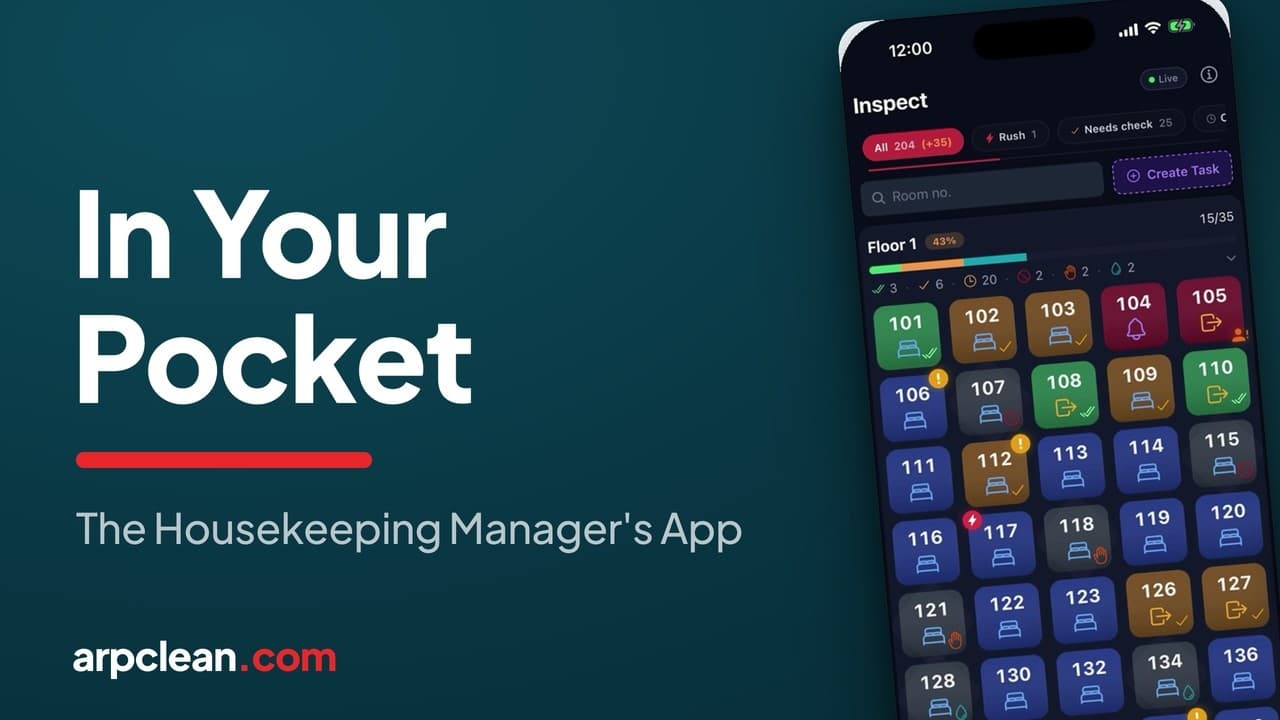
The Inspect tab lays the whole hotel out as a grid, one tile per room, and each tile stacks five pieces of information.
- Colour is the state. Green means confirmed, amber means cleaned and waiting for a check, blue means still to be cleaned, and a faded tile has been bypassed.
- The icon in the middle is the job type: an arrow for a checkout, a bed for a stayover.
- A purple bell takes the icon's place when the guest has asked for something rather than a cleaning, which the app calls an in-room request.
- A red flash in the corner marks a rush.
- An amber mark flags an open issue, and an orange figure tells you the guest is inside at that moment.
A legend on the same screen lists all of them, for the days when one slips your mind.
Filters, search and the room sheet
A full house is a long scroll. Filter chips at the top narrow the grid: Rush shows only what has to happen now, Needs check shows the rooms waiting for your walk, and there are separate chips for Open, for Checkout, for Stay and for In-room. When reception rings about a single room, type instead of scrolling. Entering 1 and 2 in the search box pulls up every room whose number begins with 12.
Tapping a tile opens that room's sheet. The top shows its state and who owns the room today, Marta S. in the video. Under that sit the decisions a manager normally makes standing at the door: mark it Rush, set Do Not Disturb, log Service Refused, choose Skip the Clean, record the room as Already Clean or as Hotel Cleaned, switch the task with Change to Checkout, or open Report Issue for a broken lamp. Nothing on the sheet requires a walk back to the office.
Confirming rooms as you walk
Inspection works in batches. Amber tiles are the rooms a cleaner has finished. Tap one and it is selected; tap the next, and a green bar at the bottom keeps count, reading Confirm with the number selected. One press confirms them all, and the main screen's ring rises by the same amount. The practical rhythm is to walk a corridor, tap each room you have looked at, and press confirm once you reach the end of it. Who is allowed to do the checking, and what a passed check means for the cleaner's pay, is set on the web and covered in the inspection guide.
Red cards, rushes and notes from the corridor
A faded tile with a no-entry sign is a Red Card: the guest has declined service for today, and every cleaner sees the same mark from down the corridor. When the guest reconsiders at the door, Cancel DND returns the room to the day's list.
The reverse case is an early arrival. Reception calls about room 116; open it, hit Rush, and the red flash sends it to the head of the cleaner's queue. Add Note for Cleaners takes a line such as "extra towels, guest arrives at two", and the cleaner sees it in their own language. Neither step takes more than a few seconds, and neither needs a phone call.
Creating tasks that were on no list
Some jobs never appear on the task sheet: a late checkout, something spilled, a room the plan overlooked. Create Task and then Create Manual Room Task ask for the room and the job type, which can be Checkout, Stay or Deep Clean, then drop a new tile on the grid, ready for cleaning and a check like any other.
When the guest needs an item rather than a clean, a baby bed or an extra bed, Create In-Room Task takes the service first and then the room. That tile carries the purple bell; when a cleaning is already scheduled for the room that day, the bell shows up as a small badge on that tile instead.
That is a manager's day as the app sees it: watched live, filtered down to what matters, decided at the guest's door. The manager app is part of the ARPCLEAN subscription. See current prices.
Going deeper
Related guides
- Run the housekeeping day
- Assign rooms to cleaners
- Inspect rooms and record quality
- Run staff, shifts, and schedules from a phone
- The cleaner's day on their own phone
Run your housekeeping the way this guide shows
30-day trial with every feature open. No credit card required, and without a payment method nothing is charged when it ends.
Start free trial