Run the housekeeping day
Use the live room board and share current status with reception.
5:43
What you will see
- How one task sheet email turns into two hundred room tasks on the floor board
- Room actions for rush, do-not-disturb, refused, and skipped service
- Dashboard Links, giving the front desk a live view of the floor with no login of their own
- Notes to cleaners that arrive already translated into their own language
A real-time room status board for the whole hotel
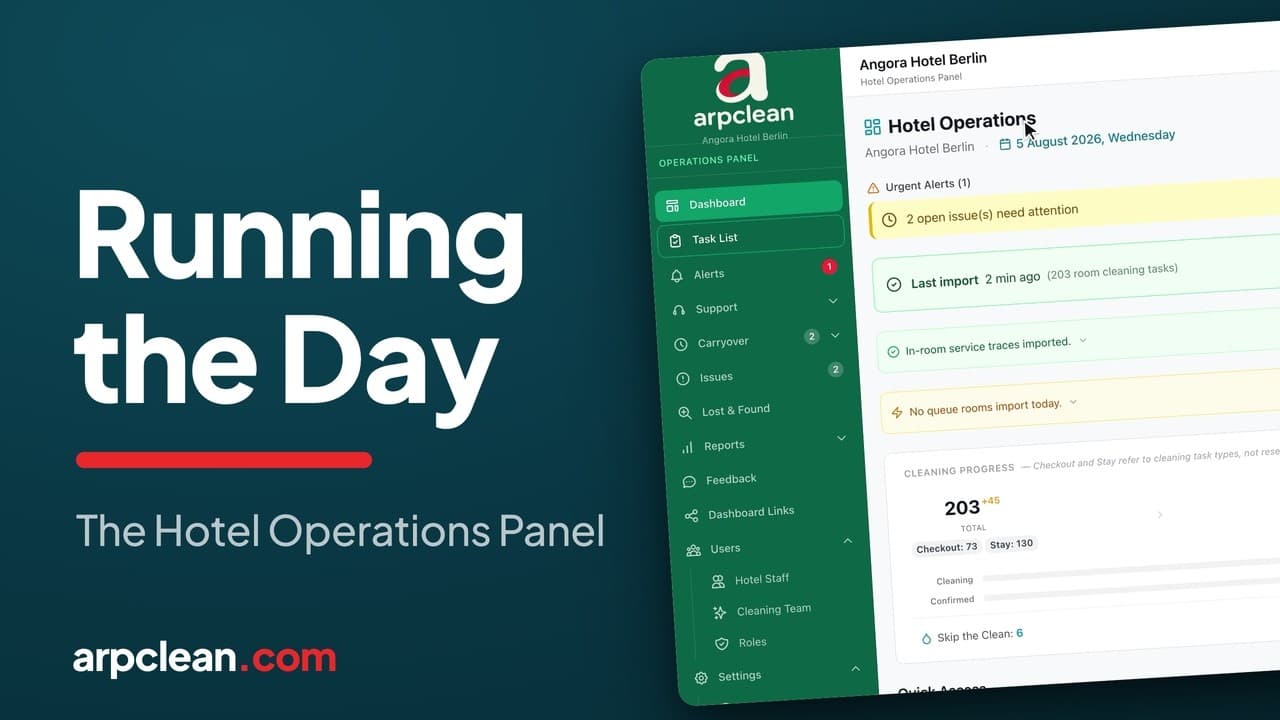
The Hotel Operations Panel is the screen a housekeeping manager keeps open from the first checkout to the last inspection. In the walkthrough it carries roughly two hundred cleaning tasks for a single day, and none of them were typed in by a person.
They came from one email. Each morning the hotel's PMS sends a task sheet to ARPCLEAN, and a task is created for every room on it. A hotel that has not set this up yet finds the built-in guide on the same page, with the exact steps for Oracle Opera Cloud. Two more reports arrive the same way: in-room service traces, such as a sofa bed or a baby cot, and the list of rooms the PMS has marked rush. Each is a single import. If the reports are scheduled inside Opera once, they land every hour without anyone remembering to send them.
Reading the task list by floor, by person, or by exception
The Task List is where the day actually happens. Floor view lists every room with its cleaning type, its current status and the attendant working on it. Attendant view turns the same data around and shows the day per person, which is the view a manager wants when a cleaner calls in sick.
Three further tabs pull out what needs attention:
- Exceptions gathers the cases that need a decision, for example an arriving guest whose room is not ready.
- In-Room collects the extra services booked for the day, with each sofa bed or cot as a task of its own.
- PMS Sync shows which cleaned rooms have already been reported back to the PMS, and which ones still need that entry.
Room actions for rush, do-not-disturb and refused service
Any room on the list opens into a side panel: the room itself, its reservation, the task in progress and the person on it. Underneath sits the Actions block. From here a manager marks a room as cleaned by the hotel, rushes it, records do-not-disturb or a refused service, or skips the clean for the day. Each action is one click.
The menu adapts to the room. A checkout room whose next guest is due later shows a different set: set the arrival time, defer the clean to tomorrow, or send it for a re-clean. Options that make no sense for that room are simply not there.
The same panel holds the note to the cleaner. A note carries a priority, can be applied to several rooms at once and can attach photos through a QR link. When the attendant opens it on their phone, the text has already been translated into their own language.
Carryover, issues and lost property
Rooms that did not get finished yesterday land in Carryover and wait for a decision rather than disappearing. On a good day that tab is empty.
Issues is where the team reports what cleaning uncovers, a cracked chair or a light that flickers, and tracks each report from open to resolved. Lost and Found logs whatever turns up in a room, gives it a category, records that it is in storage, and flags anything of high value.
Daily and monthly reports
The daily report opens with summary cards for rooms, checkouts, stays and in-room services, plus how far cleaning has progressed. Switching to another date takes one click. The cards double as filters, so one click narrows the table to checkouts only, and the columns can be switched on and off to match what a hotel wants to see. The finished day exports to PDF or Excel.
The monthly report repeats the picture across a full month, by room type and by service, day by day. It is the figure the cleaning company and the hotel later reconcile when invoices and payroll are produced.
Dashboard Links: a live board for the front desk without a login
The reception desk does not need an ARPCLEAN account to follow the floor. A Dashboard Link is created with a name, a lifetime, and a set of permissions that decide what reception is allowed to change: rushing a room, skipping a clean, or switching its cleaning type. Copy the link, hand it over, and the desk sees every room with its type and status, updating live, and nobody has to log in.
The board is also a control surface. Tapping a checkout room offers to switch it to stayover or to rush it. A stayover room adds the option to skip today, because the guest is staying on. A finished room keeps one option, skipping tomorrow. The manager can extend the link, rotate its token or disable it at any time.
Hotel staff, cleaning team and roles
Two groups work the same day and the panel keeps them apart. Hotel Staff holds the hotel's own people: managers, supervisors, front office. A new colleague is invited by email with a role and a language, and the invitation arrives in that language with an editable message.
The Cleaning Team list belongs to the cleaning company and is maintained in its own admin panel, so it needs no upkeep from the hotel side. The hotel only watches: who is currently on the floor, and in which room. A hotel that runs its own cleaning crew gets that admin panel too. Roles lists the hotel roles next to the operational ones, and opening a role shows the people who hold it.
Where the settings behind the day live
Each behaviour of the panel is backed by a setting: the cleaning types a hotel uses, the PMS import windows, the priority profiles that decide which room gets cleaned next, and the inspection rules that decide when a room counts as done. They come pre-configured for Opera and are covered in the settings tour linked below.
Most of what the panel does, assigning, tracking and closing out the day, is also available to the team in the mobile app. All of it is part of the ARPCLEAN subscription (current prices), and every screen above is open during the 30-day trial.
Going deeper
Watch next
Related guides
- Manage housekeeping from your phone
- Assign rooms to cleaners
- Inspect rooms and record quality
- Run staff, shifts, and schedules from a phone
- The cleaner's day on their own phone
Run your housekeeping the way this guide shows
30-day trial with every feature open. No credit card required, and without a payment method nothing is charged when it ends.
Start free trial