Assign rooms to cleaners
Mark attendance, divide the floors, and check each person's load.
4:37
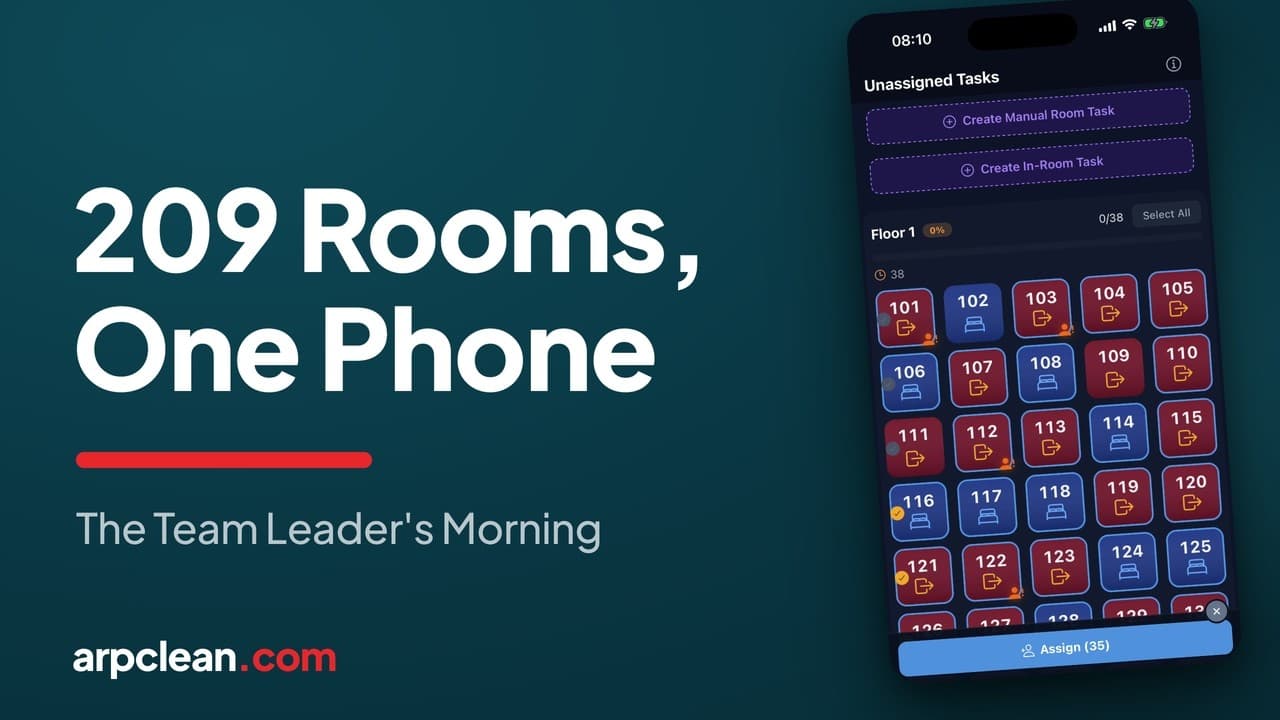
What you will see
- Marking attendance before assigning rooms
- Selecting rooms individually, by row, or by floor
- Buddy groups: two people share the same rooms, each seeing them on their own phone
- Following assigned work and completion counts
How to assign rooms to cleaners from one phone
In ARPCLEAN the team leader hands out the day's rooms, and the whole job happens on their phone. The walkthrough follows one Berlin hotel at eight in the morning: nothing assigned, nobody cleaning yet, 209 rooms waiting. By the end every one of them has an owner, and no desk was involved.
Three things happen in order. Attendance gets confirmed, the hotel's room list arrives, and then the rooms are split across the people who came in. Each step has its own screen.
Attendance first: Morning Check
The Morning Check card sits at the top of the team leader's main screen. Everyone rostered for today is already listed as present, which means the team leader only has to record the exceptions.
When somebody has not shown up, a tap on the minus beside their name drops them into the absent list underneath, and the present count falls by one. Should that person walk in twenty minutes later, the plus next to their name puts them back. Confirming the list closes attendance for the day, and the card on the main screen turns green with the numbers on it.
This step matters for what follows. Only people on the confirmed present list can be given rooms, so an absent cleaner cannot end up owning a floor by accident.
Waiting for the hotel's room list
With the team confirmed there may still be no work to hand out. The card reads Task Sheet Waiting. The room list for the day is produced by the hotel's own PMS, not typed in by the cleaning company, and on some mornings it simply has not landed yet.
There is nothing for the team leader to repair here. The normal move is to wait for the sync. If the hotel's system is actually down, the rooms can be keyed in by hand as a fallback. When the list arrives the screen updates itself, and in the walkthrough the day fills with 209 room tasks.
Reading the day's rooms floor by floor
The Tasks screen lays out today's rooms one floor at a time. The first floor in the example holds 38 rooms, none of them assigned, with the next floor below it.
Colour tells the team leader what each room needs before anyone opens it. A red room is a checkout: the guest departs today and the room gets a full turnover. A blue room is a stay-over, so the guest sleeps there again tonight. Some red rooms also carry a small orange figure in the corner. That marks a guest who is still inside, so the cleaner knows to come back rather than knock and wait. Seen across a floor, the mix of red and blue is what the workload actually looks like, and it is what the team leader plans around.
Occasionally a room on the list should not be cleaned at all. A long press on that room opens its status, with three choices: Skip the Clean, Already Clean, and Hotel Cleaned, which is for rooms the hotel's own staff took care of.
Most of the time this status is already set when the hotel system sends the room list over, so the team leader rarely touches it. The three options exist for the exception that reaches the phone before it reaches the PMS.
Selecting rooms one at a time, by row, or by floor
There are three ways to build a selection, and they can be mixed.
- Tap individual rooms. A counter in the bar at the bottom of the screen goes up with each one.
- Double-tap the first room of a row to select the entire row. Repeating the double-tap on that room releases the row again.
- Use Select All to take the whole floor. In the example that is all 38 rooms in one go.
Select All is usually followed by a small correction: the team leader taps off the handful of rooms that belong to someone else. Three rooms out, 35 kept. Whichever route was used, the bottom bar always shows how many rooms are currently held, so there is no counting by eye.
Choosing who gets them, including buddy groups
Assign brings up everybody who could take the selection. The team leader appears at the top, because on a heavy morning they may clean as well. Pairs come next, then the attendants who work on their own.
To the right of every name sits a count of rooms that person already holds today. That figure is there so the team leader can compare loads before adding more, rather than finding out at the end of the shift that one cleaner had twice the rooms of another.
A buddy group means two people cleaning one set of rooms together. Sometimes it is a couple, sometimes two friends, sometimes simply two attendants who move faster side by side. In the assignee list they share one line. Assign a block to the pair and both phones show the same rooms, because both people are working them. Each of the two can still hold rooms of their own on top of the shared block.
One tap on a name, and in the example the 35 selected rooms have an owner.
Where assigned rooms go
Rooms leave the unassigned grid the moment they are given out, and whatever is still open moves up to fill the gap. Nothing is lost; the assigned rooms have moved to the Inspect screen.
Inspect lays out what remains of the day, one group per person. Every heading belongs to a single attendant or a pair, with their rooms underneath and a counter for how many are done. Right after assignment that counter reads zero of 35, because the cleaning has not started. The division of labour between the two screens is simple: Tasks is where the day is planned, Inspect is where the work is followed.
The remaining floors go the same way: pick a floor, pick a person or a pair, continue. Once the final room is taken, the grid empties out and reads All Tasks Assigned, and the main screen confirms it in green: All 209 Room Tasks Assigned. That is the whole distribution for a 209-room hotel, finished in minutes, one-handed.
What happens for the rest of the day
Assignment is the morning's job. From here the team leader works out of Inspect: which rooms are finished, which are waiting for a check, and what needs to go back for another pass. That part of the day is covered in the guide on inspecting rooms and recording quality, which also explains how the check itself is configured per hotel.
The room list the team leader is waiting for at the start comes out of the Oracle Opera Cloud export described in the setup guide. Everything on this page is part of the ARPCLEAN subscription, with no setup fee. See current prices.
Going deeper
Related guides
- Run the housekeeping day
- Manage housekeeping from your phone
- Inspect rooms and record quality
- Run staff, shifts, and schedules from a phone
- The cleaner's day on their own phone
Run your housekeeping the way this guide shows
30-day trial with every feature open. No credit card required, and without a payment method nothing is charged when it ends.
Start free trial